Choosing between Google Docs and Google Sheets may seem simple, but it can affect how fast and well you complete your work. Each tool serves a different purpose. Docs helps you write, edit, and format text with ease. Sheets helps you organize data, run calculations, and create charts.
Both tools now include AI features that speed up your tasks and improve accuracy. Many users switch between them without a clear plan. That can waste time. So, how do you decide which one to use?
This blog post explains Google Docs and Google Sheets, their key differences, real-world use cases, and the latest features so you can choose the right tool for your needs.
Key Takeaway
- Purpose: Google Docs excels at writing and document creation, while Google Sheets handles numbers, lists, and tables.
- AI support: Gemini in Docs drafts professional text and matches your writing style, whereas Gemini in Sheets builds and organizes entire spreadsheets from a single prompt.
- User base: Google Workspace serves over three billion monthly users, and Docs has about one billion monthly users compared with Sheets’ 900 million.
- Integration: Both apps integrate with thousands of third-party tools and support secure collaboration; many Workspace users rely on mobile devices.
- Bottom line: Choose Docs when you need text editing and rich formatting, and choose Sheets when you need data organization, formulas, and charts. If your work spans both, use them together for the best result.
What Are Google Docs and Google Sheets?
Google Docs and Google Sheets are online tools from Google Workspace that help you create and manage work in the cloud. You don’t need to install anything. You can open them in your browser or mobile app and start working right away.
Google Docs is a word processor. You use it to write documents like reports, articles, letters, and proposals. It lets you format text, add images, and share your work with others. Multiple people can edit the same document at the same time, and you can track every change.
Google Sheets is a spreadsheet tool. You use it to work with numbers, data, and lists. It helps you create budgets, track tasks, and analyze data using formulas and charts.
Both tools save your work automatically and allow real-time collaboration, making them simple and powerful for personal and team use.
Google Docs: A Modern Writing Platform
AI-Powered Drafting and Editing
Gemini in Docs acts like a personal writing assistant. You can ask it to create a draft based on notes or prompts, like “draft a newsletter using our meeting minutes,” and it will pull relevant details from your Drive or emails. Once you have a draft, you can ask the AI to refine sections, adjust tone or match your writing style. The new Match writing style and Match doc format tools unify voice across your document and align it to a reference format, such as a travel itinerary template.
Smart Canvas and Templates
Smart Canvas makes documents interactive. You can insert smart chips that link to people, files or events, embed meeting notes directly into a doc, or create checklists and tables with one click. Docs also includes reusable building blocks, like email drafts and contract clauses to help you start faster. Whether you are drafting a report, writing a proposal or taking class notes, templates save time and ensure consistent formatting.
Collaboration and Security
Up to 100 people can edit a Doc at once. Comments, suggestions and @mentions keep discussions organized, and you can jump on a Google Meet call without leaving the document. Access controls allow you to share the doc as view-only, commenter or editor. Every change is stored in version history, and data is encrypted in transit and at rest. If you use Microsoft Word, you can import the file into Docs and unlock collaborative editing.
Best Use Cases for Docs
- Drafting articles or reports: Use Gemini to generate a first draft, then refine your voice and formatting.
- Meeting agendas and notes: Smart chips and templates insert attendee lists, action items and timelines.
- Contracts and proposals: Reusable building blocks and eSignature integrations speed up workflows.
- Team policies and handbooks: Collaborative editing ensures everyone contributes and approves the final version.
Google Sheets: AI-Enhanced Spreadsheets
Spreadsheets That Build Themselves
Gemini in Sheets transforms a blank sheet into a working tracker. Just describe what you need, like a budget, packing list or project dashboard and it will build tables and charts automatically. The Fill with Gemini feature auto-populates columns with categories, summaries or real-time data from the web. For example, if you create a college application tracker, you can generate due dates and tuition costs based on online information without manual research.
Smart Chips, Formulas and Connected Data
Sheets offers smart chips for people, dates and files. You can tag colleagues to assign tasks or link to Drive documents within a cell. Built-in formula suggestions help you calculate sums, averages, and pivot tables without memorizing syntax. Filter views and conditional notifications make reviewing large datasets easier. With Connected Sheets, you can query billions of rows from BigQuery or Looker without learning SQL.
Collaboration and Security
Like Docs, Sheets supports real-time collaboration with comments and tasks. You decide who can view or edit each sheet and can grant different levels of permission to specific ranges. Data is encrypted by default, and client-side encryption is available for sensitive spreadsheets. You can even edit Microsoft Excel files directly in Sheets.
Best Use Cases for Sheets
- Budgets and financial tracking: Create custom finance trackers or personal budgets; connect to bank data via APIs.
- Project planning and Gantt charts: Use templates or Gemini to build project plans with tasks, dates and progress indicators.
- Data analysis and dashboards: Pull data from BigQuery or third-party apps; build pivot tables and charts.
- Checklists and event planning: Use pre-built tables and conditional notifications to manage tasks and deadlines.
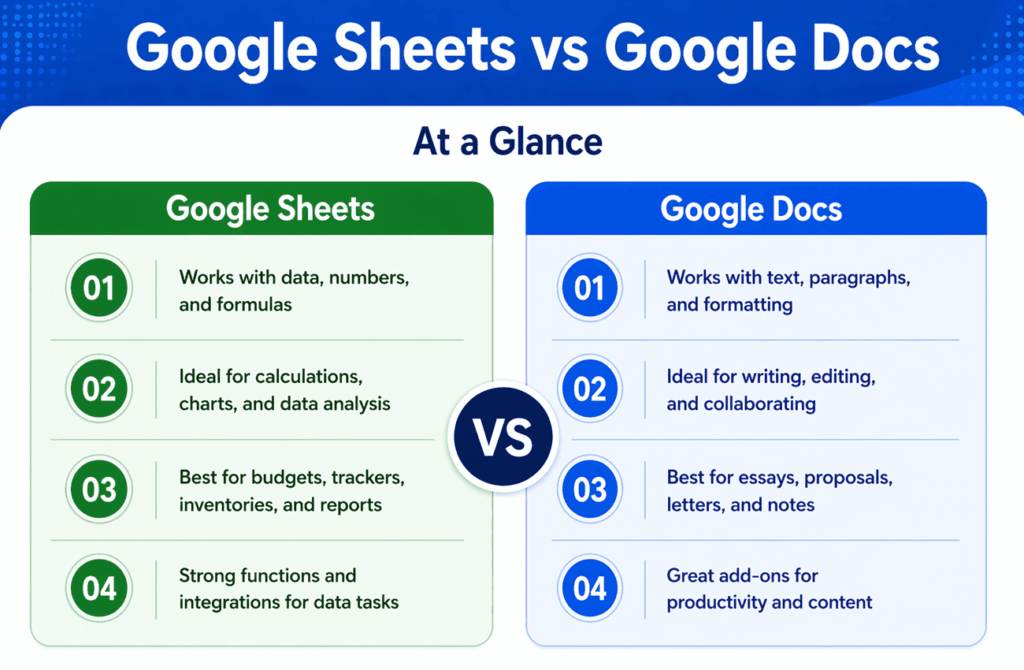
Comparison of Google Docs Vs Google Sheets Features
The infographic below compares Google Docs and Google Sheets:
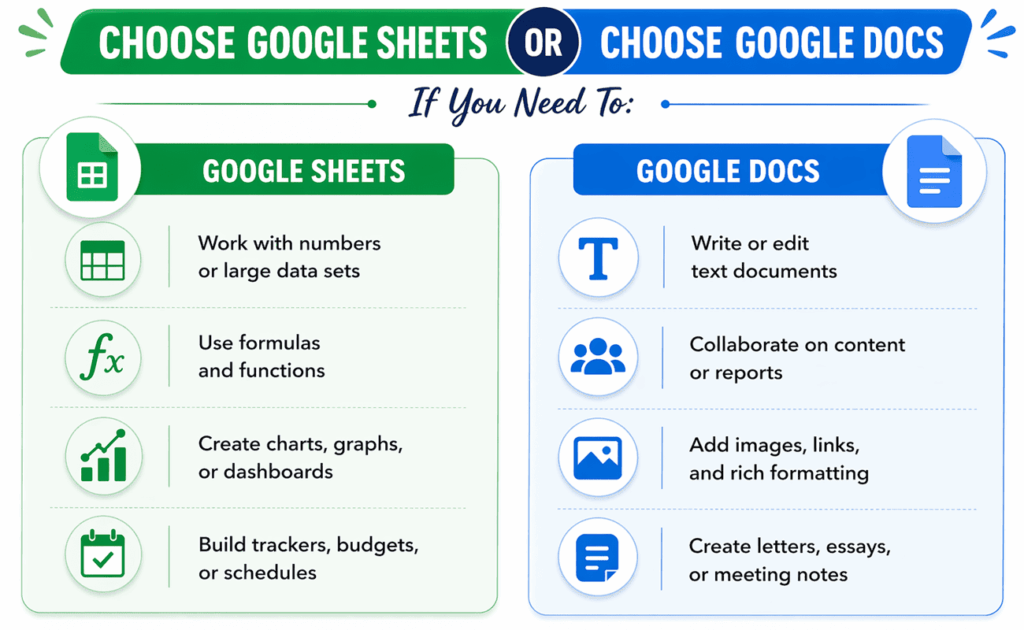
How to Choose the Right Tool
The infographic helps you choose the right tool for your work:
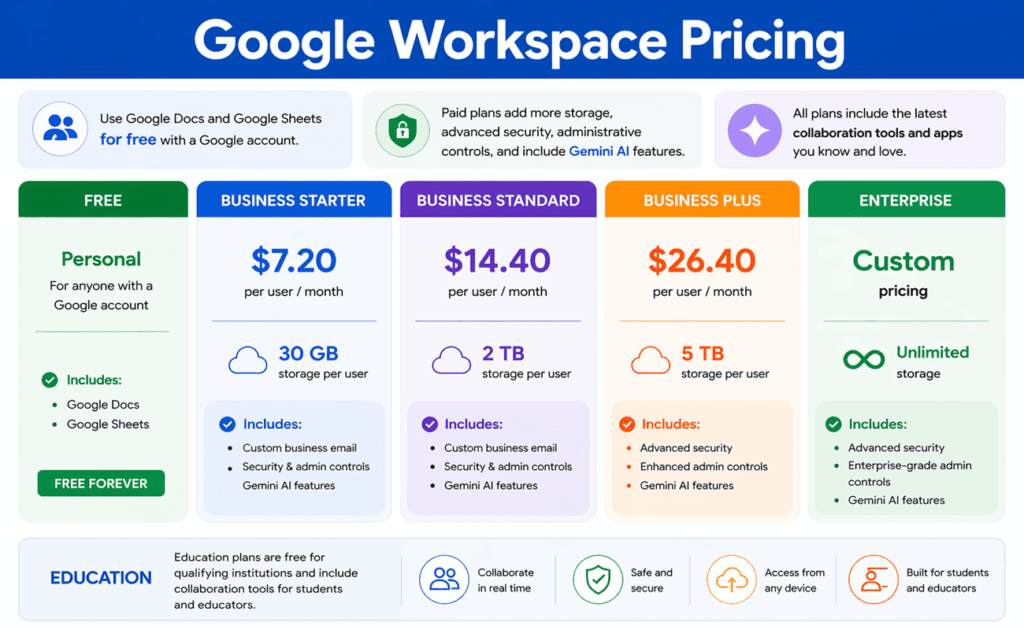
Pricing and Plans
The infographic below compares the different Google Workspace pricing plans:
Pros and Cons at a Glance
| Criteria | Google Docs | Google Sheets |
| Purpose | Writing, notes and rich text | Numbers, lists, formulas and charts |
| AI help | Gemini drafts, polishes and matches style | Gemini builds full spreadsheets and fills data |
| Collaboration | Real-time editing, comments and Meet calls | Real-time editing and tasks; granular permissions |
| Templates and blocks | Smart canvas, meeting notes, building blocks | Pre-built tables, smart chips and filter views |
| Data integration | Linked to Drive, Gmail and other Google services | Connected Sheets accesses BigQuery and third-party data |
Tips for Choosing the Right Tool
- Start with your goal: If your project involves prose, narratives or formal documents, begin in Docs. For structured data or calculations, start in Sheets.
- Use AI to jump-start work: Describe your task to Gemini. In Docs, you can get a draft that matches your tone. In Sheets, you can build budgets or trackers from a single prompt.
- Combine both: Many projects need both text and data. Write your proposal in Docs, then link to a Sheet for the budget. Use smart chips to connect them.
- Consider your team: If your team is more comfortable with spreadsheets, start in Sheets and embed comments. If they prefer writing, use Docs and link out to tables.
- Check integrations: Add-ons like Salesforce, Asana or Zoom can help streamline workflows. Choose the tool that offers the best integrations for your needs.
FAQs
Q1. What is the main difference between Google Docs and Google Sheets?
Docs is for typing and formatting text, while Sheets is for numbers, lists and formulas. Both are cloud-based and support real-time collaboration.
Q2. Can I use Docs and Sheets offline?
Yes. Enable offline access in your settings to edit files without an internet connection. Changes sync automatically when you reconnect.
Q3. Do I need to pay to use Gemini features?
Some AI features are included in free plans, but advanced Gemini tools require a paid Google Workspace subscription.
Q4. How secure are my files?
Both Docs and Sheets encrypt data at rest and in transit. You can add client-side encryption and manage file permissions for extra security.
Q5. Can I import Microsoft Office files?
Yes. You can open Word documents and Excel spreadsheets in Docs or Sheets and convert them to Google formats for collaboration.
Summary
Google Docs and Google Sheets are powerful tools, but they serve different needs. Docs works best for writing and editing content, while Sheets is ideal for handling data and calculations. Both tools now include AI features that make work faster and easier. The key is to use the right tool for the task. When used together, they create a smooth workflow that improves productivity and teamwork. Choose wisely, and you will work more efficiently every day.

I am Mohammad Fahad Usmani, B.E. PMP, PMI-RMP. I have been blogging on project management topics since 2011. To date, thousands of professionals have passed the PMP exam using my resources.